Configure charges and invoice a shipment
From setup to a confirmed invoice
Configure charge types and sales rates, prepare the shipment details, and add its charges. Then review the amounts, select the charges you want to invoice, and confirm the invoice.Before you begin
This guide covers an operation with a Master and associated shipments. Select a step to jump to that section:
- Configure charge types.
- Configure sales rates.
- Prepare the Master and its shipments.
- Complete the tariff classification and shipment details.
- Add charges.
- Review calculations and amounts.
- Create a draft invoice.
- Review and confirm the invoice.
You need permission to manage charges and perform the corresponding configuration actions.
Charge types and rates can be used across different operations that meet their conditions. You do not need to configure them again for each shipment.
1. Configure charge types
Go to Settings → Financial → Shipment Charge Types.
Charge types define the items billed to the customer, such as freight, delivery, storage, or customs duties and taxes.
Click Create Shipment Charge Types.
Select or create a product
Under Product, choose:
- Select product: to use an existing product.
- New product: to create one.
The product identifies the item being charged and is used in the invoice lines.
If you create a product, complete the Code, Name, Description, and Category, as applicable. The name and category are required in the form.
Under Pricing, review Customer Taxes. This field configures the sales taxes associated with the product, which appear in the invoice lines.
Complete the charge details
Under Details, configure the fields according to the item you want to charge:
| Field | What to configure |
|---|---|
| Charge Group | The item's classification, such as Freight, Storage Charges, or Taxes. |
| Measurement | The value or unit used as the quantity or calculation base. |
| Container Measurement | The appropriate option if the charge is calculated by container: By Container Type or By TEU. |
| Accrual Type | The appropriate option for the item. |
| Display Order | The order in which the charge type appears. |
| Description | Additional information about the item. |
Keep the charge type Active, enable Receivable, and select the Default Receivable Currency, where applicable.
The Payable option enables its use as a payable charge.
Choose the measurement
The Measurement determines which value is used in the Quantity field. Choose it according to how the company calculates the charge.
| Measurement example | Quantity or base used |
|---|---|
| Fixed | A quantity of 1. |
| Declared Weight (AR) | The sum of the declared weights in the tariff classification items. |
| Percentage of FOB (AR) | The sum of the FOB values in the tariff classification items. |
For charges based on units, weight, volume, or time:
Amount = quantity × unit price.
For percentage-based charges:
Amount = base × percentage ÷ 100.
For a percentage-based measurement, Quantity contains the base and Unit Price contains the percentage.
Argentina-specific measurements
Measurements marked (AR) are available when the Argentina localization is enabled.
The company chooses the measurement according to how it calculates the charge. The charge name alone does not determine the calculation base.
Identify an Argentine customs duty or tax
If the item is a customs duty or tax:
- Enable Is a customs duty or tax (AR).
- Under Duty/Tax, select the corresponding item. This field is required when that option is enabled.
For example:
| Code | Duty/Tax |
|---|---|
| 010 | Import Duties. |
| 011 | Statistical Tax. |
| 012 | Anti-Dumping Duty 1. |
| 417 | Excise Taxes. |
| 415 | VAT. |
To identify import duties, select 010 - IMPORT DUTIES. For customs VAT, select 415 - VAT.
Identifying the duty or tax does not define its calculation base. The amount depends on the Measurement, the Quantity or base, and the Unit Price or percentage.
Settings with different functions
- Measurement defines the quantity or calculation base.
- Charge Group classifies the item.
- Is a customs duty or tax (AR) + Duty/Tax identifies the customs duty or tax.
- Customer Taxes configures the product's sales taxes.
Selecting a duty or tax does not replace the measurement configuration. Selecting the Taxes group does not replace the identification of the customs duty or tax either.
Customs VAT recorded as a charge and the sales tax configured on the product are different items.
Define where the charge is available and generated
Under Active in, specify the logistics models, transport modes, and trade directions in which the charge can be used.
Under Automatic Display, select the structures in which the charge should be included when running Generate charges automatically, such as Direct, House, Master, or Consolidation. You can also restrict it by trade direction.
Availability and automatic generation
Active in determines where the charge type can be used.
Automatic Display determines where automatic generation creates it.
A charge can be available for manual entry without being generated automatically.
2. Configure sales rates
Go to Settings → Financial → Rates.
- Click Create Rate.
- Choose Sales as the direction.
- Enter the name and select the currency.
- Keep the rate active.
- Under Lines and Prices, use Add line to associate charge types with their prices and validity periods.
- Complete the conditions for each line that apply to the operation.
- Assign the rate to the customer from the Customers tab.
When generating charges, the system looks for valid prices in the active sales rates assigned to the customer.
The line must match the charge type and shipment conditions, such as origin, destination, and carrier.
If no price is found
Review the validity period, customer assignment, and rate conditions.
If there is no matching price, enter the appropriate price in the charge before invoicing.
3. Prepare the Master and associated shipments
Create the operation's Master and complete its details. Then create its associated shipments.
For each shipment, check that:
- It is associated with the correct Master.
- The customer who will be billed for the charges is selected.
- The details required for the operation are complete.
Charges are generated and reviewed in each shipment.
If the Master and shipments have already been created, review their details and continue to the next step.
4. Complete the tariff classification and shipment details
Add the tariff classification items for each shipment and complete the data used by the charge measurements.
For example:
| Measurement | Data you need to complete |
|---|---|
| Declared Weight (AR) | The declared weights of the items. |
| Percentage of FOB (AR) | The FOB values of the items. |
Also complete the data used by other measurements, such as the reported weight, volume, or days in storage.
Review this information before generating charges: the calculated quantities and bases depend on these values.
5. Add charges
Go to Shipments, open the shipment, and select the Charges tab.
If no charges have been recorded yet, “No records found” appears.
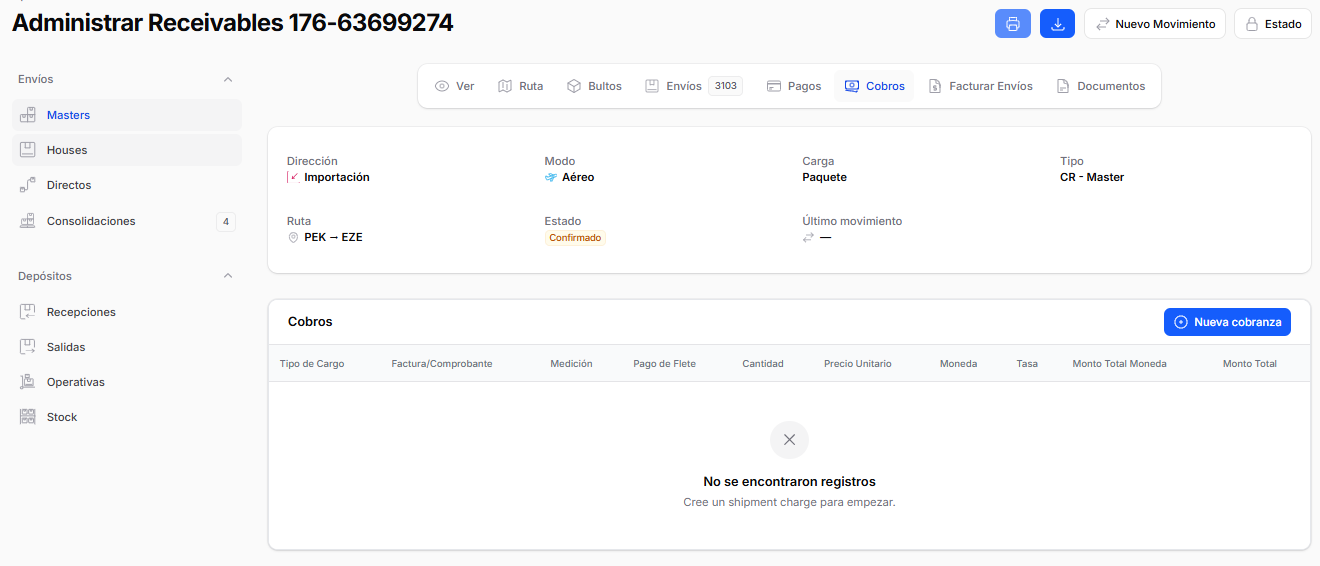
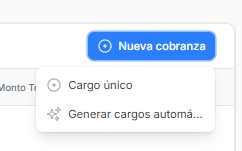
Click New charge and choose an option:
- Generate charges automatically: uses the charge types enabled for the operation, their measurements, and the corresponding rates.
- Single charge: allows you to enter a charge manually.
If the shipment already has the charges you need, continue to step 6: review calculations and amounts.
Automatic generation
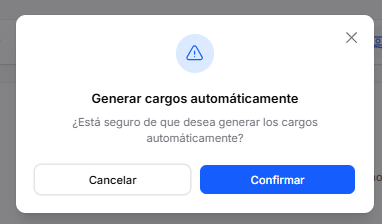
Select New charge → Generate charges automatically. In the confirmation window, click Confirm.
The system:
- Finds active charge types with Receivable enabled that apply to the shipment and have Automatic Display configured.
- Gets the quantity or base according to the measurement.
- Looks up the price in the customer's sales rate.
- Fills in the currency and exchange rate.
If the measurement uses tariff classification data, the calculation takes the values recorded in the shipment's tariff classification items.
The generated charges appear as rows in Charges.
When charges are generated
Automatic generation runs when you select this option; it does not start when the shipment is created.
If the shipment was created from a won quotation, its charges may have been copied from that quotation.
Before generating charges again
Uninvoiced charges of the corresponding types are deleted and created again. This may erase any manual adjustments you made to those rows.
Charges that have already been invoiced are preserved.
Manual entry
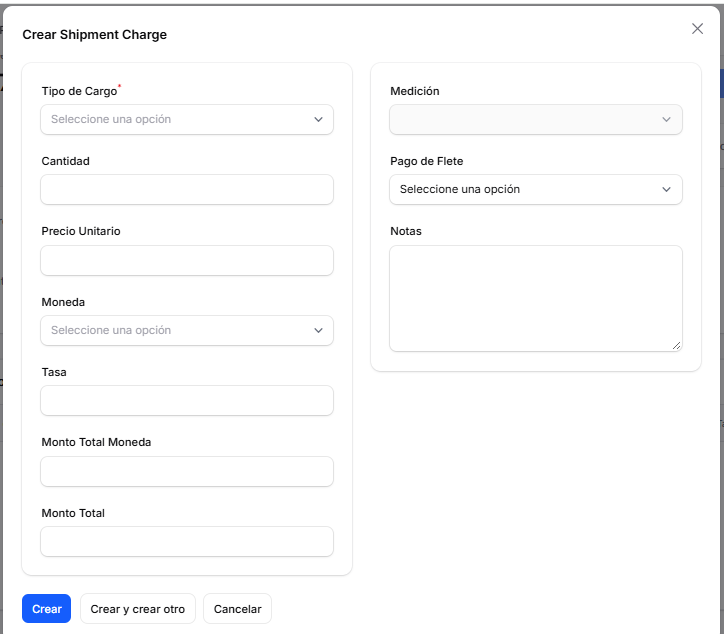
Select New charge → Single charge.
Choose the Charge Type and complete or review the following fields:
| Field | What to review |
|---|---|
| Measurement | How the quantity or calculation base is determined. |
| Quantity | The units or base used to calculate the amount. |
| Unit Price | The price per unit or percentage, depending on the measurement. |
| Currency | The charge currency. |
| Rate | The exchange rate used to convert the amount to the company currency. |
| Freight Payment | The freight payment term, if applicable. |
| Notes | Additional information, if applicable. |
Check Total Amount in Currency and Total Amount.
Click Create to save, or Create and create another to enter the next charge.
6. Review calculations and amounts
Before invoicing, check that each charge has:
- The correct item and product.
- The measurement that matches how the charge is calculated.
- The correct quantity or base.
- The correct unit price or percentage.
- The appropriate currency and exchange rate.
- The expected amount.
For a percentage-based measurement, remember that Quantity contains the base and Unit Price represents the percentage applied.
Review the totals:
| Field | What it shows |
|---|---|
| Total Amount in Currency | The amount expressed in the charge currency. For percentage-based measurements, the calculation includes division by 100. |
| Total Amount | The amount converted to the company currency using the exchange rate. |
You can edit the available fields directly in the row. Changes are saved when you leave the field, and totals are recalculated automatically.
Totals are read-only. Conversion uses the latest exchange rate entered for the currency pair. You can add a new rate from the exchange rate widget without leaving the shipment.
If the amount is not what you expected
Review:
- The shipment and tariff classification data.
- The charge type's measurement.
- The resulting quantity or base.
- The price and rate conditions.
- The currency and exchange rate used.
If the charge corresponds to a customs duty or tax, also check its identification under AR Customs Duty/Tax and the product's Customer Taxes.
7. Select the charges and create the invoice
The shipment must be Confirmed and must not have an accounting closure.
Select the checkboxes for the charges you want to invoice. Each charge must have a product, customer, currency, quantity, and an amount greater than zero.
If any required information is missing, the system explains the reason and does not create the invoice.
Open the table's three-dot menu and select Create customer invoices.
Charges already included in an invoice
Select charges that do not yet have an associated invoice or document.
If the Invoice/Document column displays an invoice number, that charge has already been included in an invoice.
A confirmation window opens to create the draft invoices. The selected charges are grouped by customer and currency.
Complete the Argentina-specific details
If the company uses the Argentina localization, complete the ARCA details:
| Field | What to enter |
|---|---|
| Point of sale | The point of sale corresponding to the invoice. |
| Document type | The type of document to be issued. |
| Concept | The concept corresponding to the operation. |
| Service from | The start date of the service period. |
| Service to | The end date of the service period. |
| Currency | The currency in which the invoice will be created. |
Choose the invoice currency
- If you choose the company currency, the invoice uses the converted Total Amount of each charge.
- If you choose another currency, all selected charges must be expressed in that currency. The invoice uses Total Amount in Currency.
If you select charges in different currencies and try to invoice them in a currency other than the company currency, the invoice is not created. Select only charges in that currency or invoice them in the company currency.
Review the information and click Confirm to create the draft invoice.
8. Open, review, and confirm the invoice
The invoice number appears in the Invoice/Document column of each included charge. Click that number to open it.
The created invoice is in Draft status.
Charges included in an invoice
Once included in an invoice, charges can no longer be edited or deleted from the shipment.
Review the general details
Under General, check:
- Customer.
- Invoice date.
- Due date.
- Payment terms.
- Source shipment.
Review the lines and totals
Under Invoice Lines, check:
- Products.
- Quantities.
- Unit prices.
- Discounts.
- Taxes.
- Subtotals.
The Net Amount, calculated taxes, and Total appear below the table.
Customs VAT and VAT on services
A charge such as Customs VAT is included as a product line and forms part of the net amount.
The Taxes column shows the sales taxes configured for each product. These are used to calculate the taxes and the invoice total.
Customs VAT recorded as a charge and VAT applied to services are different items. Review each line's configuration and resulting amount before confirming.
Confirm the invoice
If you need to correct any details, click Edit.
When you have finished reviewing the information, click Confirm on the invoice screen.
Two confirmations, two steps
- Confirm in the creation window: generates the draft invoice.
- Confirm on the invoice screen: confirms the document after you have reviewed it.
Situations that prevent charges from being modified or invoiced
| Situation | What happens |
|---|---|
| Charge already invoiced | It cannot be edited or deleted from the shipment. Automatic generation preserves it. |
| Shipment closed for accounting | Charges cannot be created, generated, edited, deleted, or invoiced. |
| Shipment not confirmed | An invoice cannot be created from its charges. |
| User without permission to manage charges | The tab is available in read-only mode. |
The shipment's operational closure does not block charges. Its accounting closure prevents them from being modified or invoiced.